
Features

Private Browser:Browse without leaving your vault.

Search and download inside the vault you opened. Files go straight into the folder you choose, never into your camera roll, and history can clear itself when you close the browser.
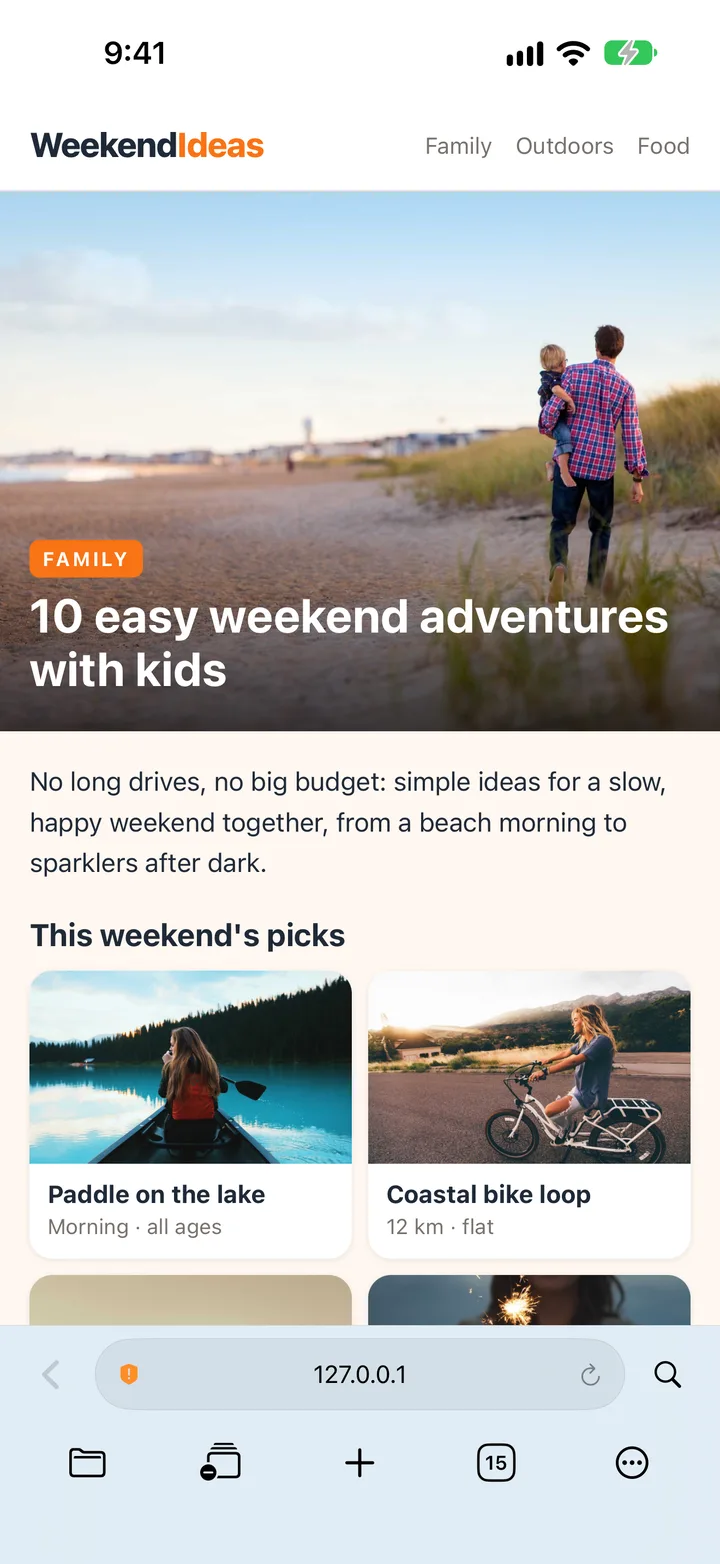
A web page open in MaxVault’s private browser, with tabs, downloads and bookmarks in the toolbar.

What Private Browser does

Download into your vault

Save photos, videos and documents straight into the folder you choose.

Clear on close

Have browsing history and website data cleared automatically every time you close the browser.

Tabs and find on page

Keep several pages open, and search the page you’re reading.

Switch instantly

Jump between the browser and your files in a tap.

Bookmarks in folders

Save a page as a bookmark inside any folder, next to the files it relates to.

Download a file privately

Full guide: How to download files privately on iPhone
  1. Tap + → Private Web Browser.
  2. Choose where downloads go in Settings → Private Web Browser → Download Files To.
  3. Turn on Auto Clear History to clear history each time you close the browser.
  4. Downloads land in your vault folder, never in your camera roll or the Files app.

Private Browser: questions.

Is browsing history kept?

History is stored in the vault you’re browsing from and is never synced. Turn on Auto Clear History to clear it whenever you close the browser, or clear it any time with Clear All Browser Data.

Where do downloads go?

Into the vault folder you choose in Download Files To. They stay in that vault and never appear in Photos or Files.

Can I save bookmarks?

Yes. Bookmarks are saved as files in your vault, so you can keep one in the folder it relates to.

Keep what’s personal private.

Free to download for iPhone and iPad.

Download on theApp Store