
Features

Multiple Vaults:A vault for every part of your life.

Keep family photos, work documents and anything else apart. Each vault has its own files, folders and passcode, and only the vault whose passcode you enter opens.
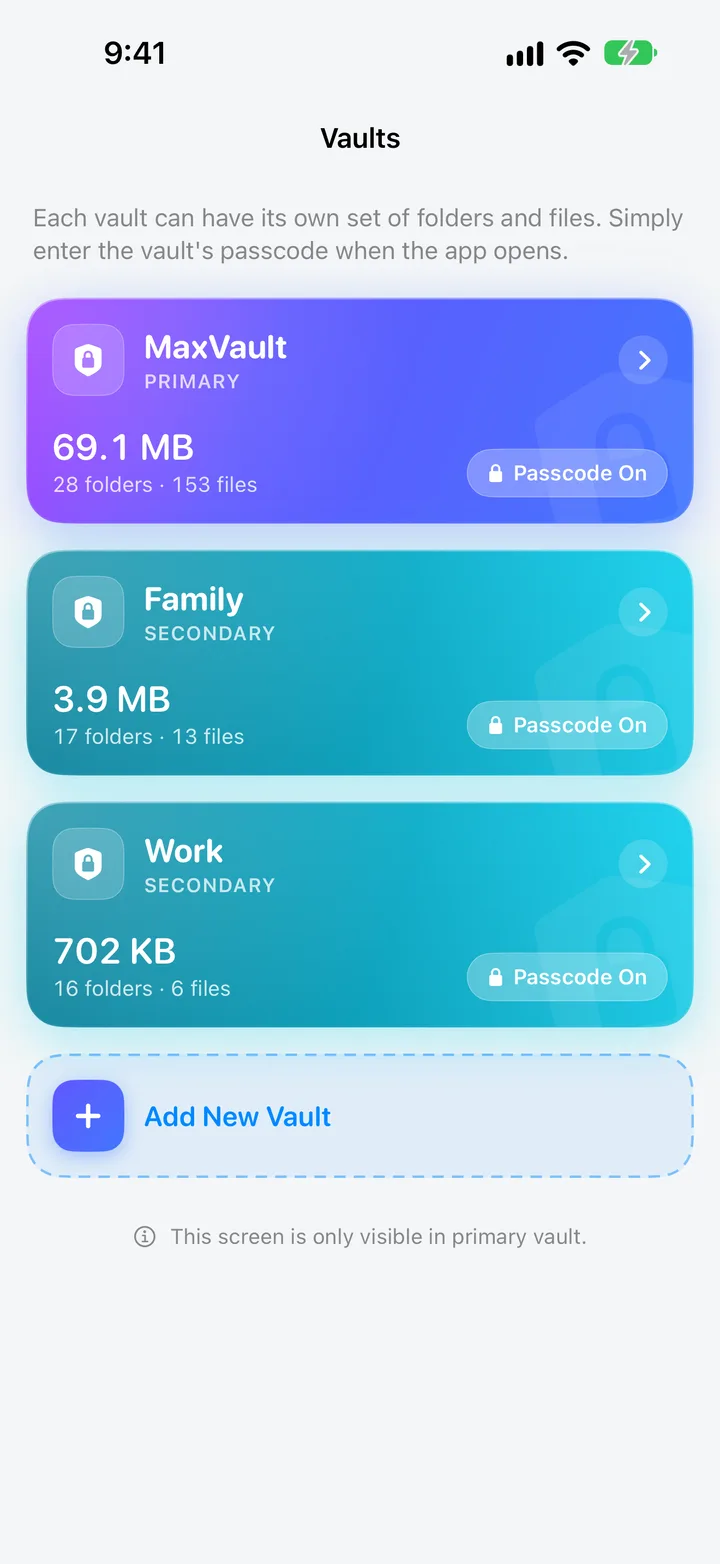
The Vaults screen in MaxVault: a primary vault and Family and Work vaults, each with its own passcode.

What Multiple Vaults does

Its own passcode

Enter a vault’s passcode when MaxVault opens and only that vault appears.

Its own files and folders

Nothing in one vault shows up in another, so opening one never reveals the rest.

Managed from your primary vault

The Vaults screen appears only in your primary vault, so opening any other vault gives no hint that more exist.

A decoy when you need one

Fill a vault with harmless content, and open it, or let Panic Action switch to it, if you are ever pressured to unlock the app.

Add a vault

Full guide: How to set up a decoy vault on iPhone
  1. Set a passcode for your Primary vault first, in Settings → Vaults.
  2. Tap Add New Vault, give it a Vault Title and its own passcode. Each vault must use a different passcode.
  3. Lock MaxVault, then open it with the new passcode. Only the new vault appears.

Multiple Vaults: questions.

Can someone in one vault see that other vaults exist?

The Vaults screen appears only in your Primary vault. Opening a secondary vault shows only its own files and folders, with no list of other vaults.

How do I switch between vaults?

Lock MaxVault and enter the other vault’s passcode. You can also have Panic Action switch to a chosen vault when you flip your phone face down.

What happens if I delete a vault?

Deleting a vault removes it with all of its folders and files, and MaxVault asks you to confirm first. It can’t be undone.

Keep what’s personal private.

Free to download for iPhone and iPad.

Download on theApp Store