
Features

Photo & Video Editor:Edit privately. Share safely.

Blur faces, cover private details and strip location data before anything leaves your phone. Edits happen inside the vault, so no copies land in your camera roll.
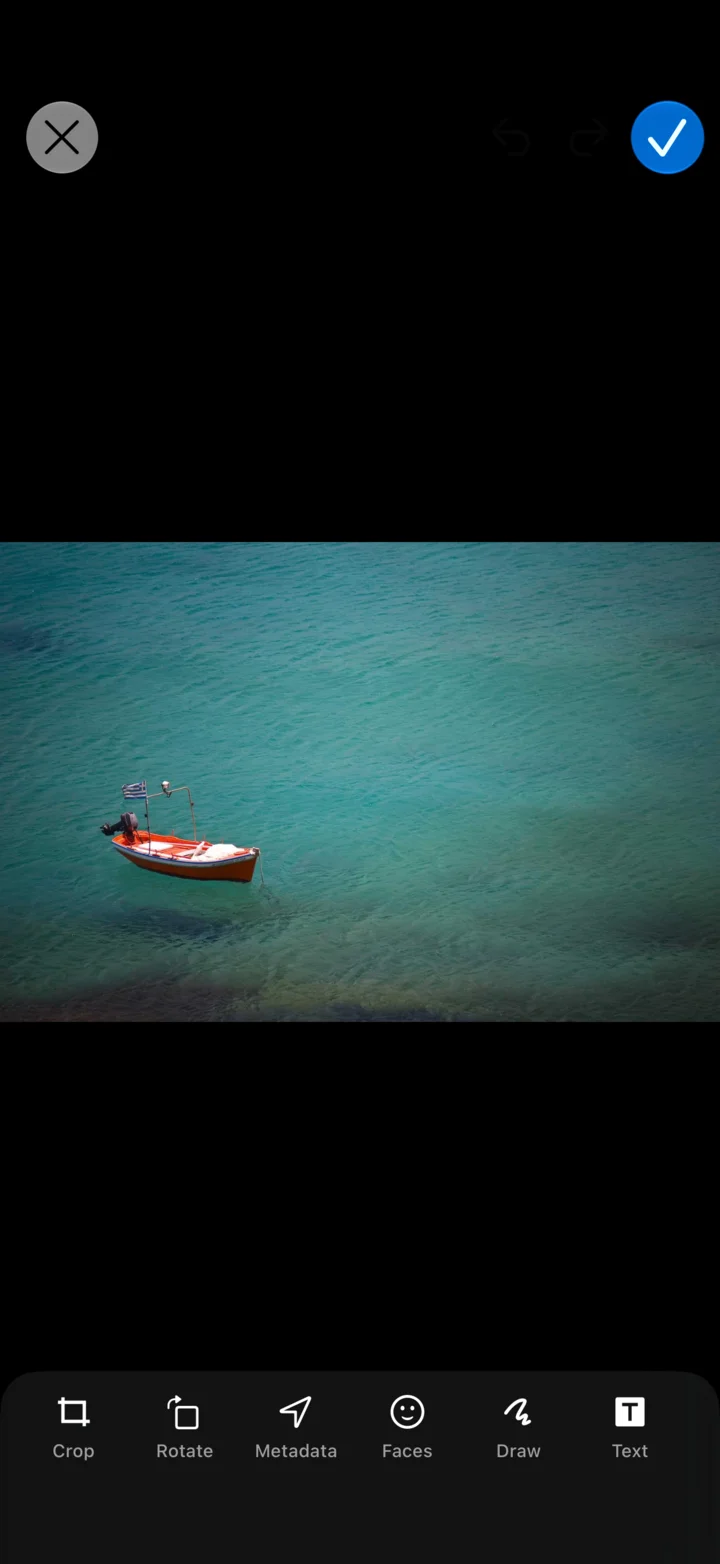
MaxVault’s photo editor with a boat photo and Crop, Rotate, Metadata, Faces, Draw and Text tools.

What Photo & Video Editor does

Blur faces automatically

MaxVault finds the faces in a photo and blurs them in one tap. Blur any other area by hand.

Redact private details

Cover names, addresses, card numbers and anything else a screenshot shouldn’t show.

Remove metadata

See the hidden details stored in a photo, like where it was taken, and remove them before you share.

Video Editor

Trim, rotate, crop, change quality, and save any frame as a photo.

Photo collages

Combine 2 to 6 photos with flexible layouts, ratios, spacing, corners and backgrounds.

Everyday edits

Crop, rotate, draw, apply filters and fine-tune adjustments.

Blur a face before you share

Full guide: How to blur faces in a photo on iPhone
  1. Open the photo in MaxVault and tap Edit.
  2. Choose the blur tool. MaxVault finds the faces and blurs them; blur or redact any other area by hand.
  3. Open Metadata to see what the photo stores, such as where it was taken, and remove it.
  4. Save, then share the edited copy.

Photo & Video Editor: questions.

Do my edits end up in the Photos app?

No. Editing happens inside MaxVault, so no copies land in your camera roll unless you save one there.

Does sharing a photo from iPhone include its location?

It can. Photos taken with location on store GPS coordinates in the file. Remove them in MaxVault’s Metadata view before you share. How to remove location from photos.

Can I edit videos too?

Yes. The Video Editor trims, rotates, crops, changes quality and saves any frame as a photo.

Keep what’s personal private.

Free to download for iPhone and iPad.

Download on theApp Store