
Features· Security

Panic Action:One flip. Nothing to see.

Panic Action hides MaxVault the moment you flip your iPhone face down or swipe down with three fingers. Choose what happens: switch to a harmless decoy vault, or jump straight to Safari, Photos, Mail or Messages.
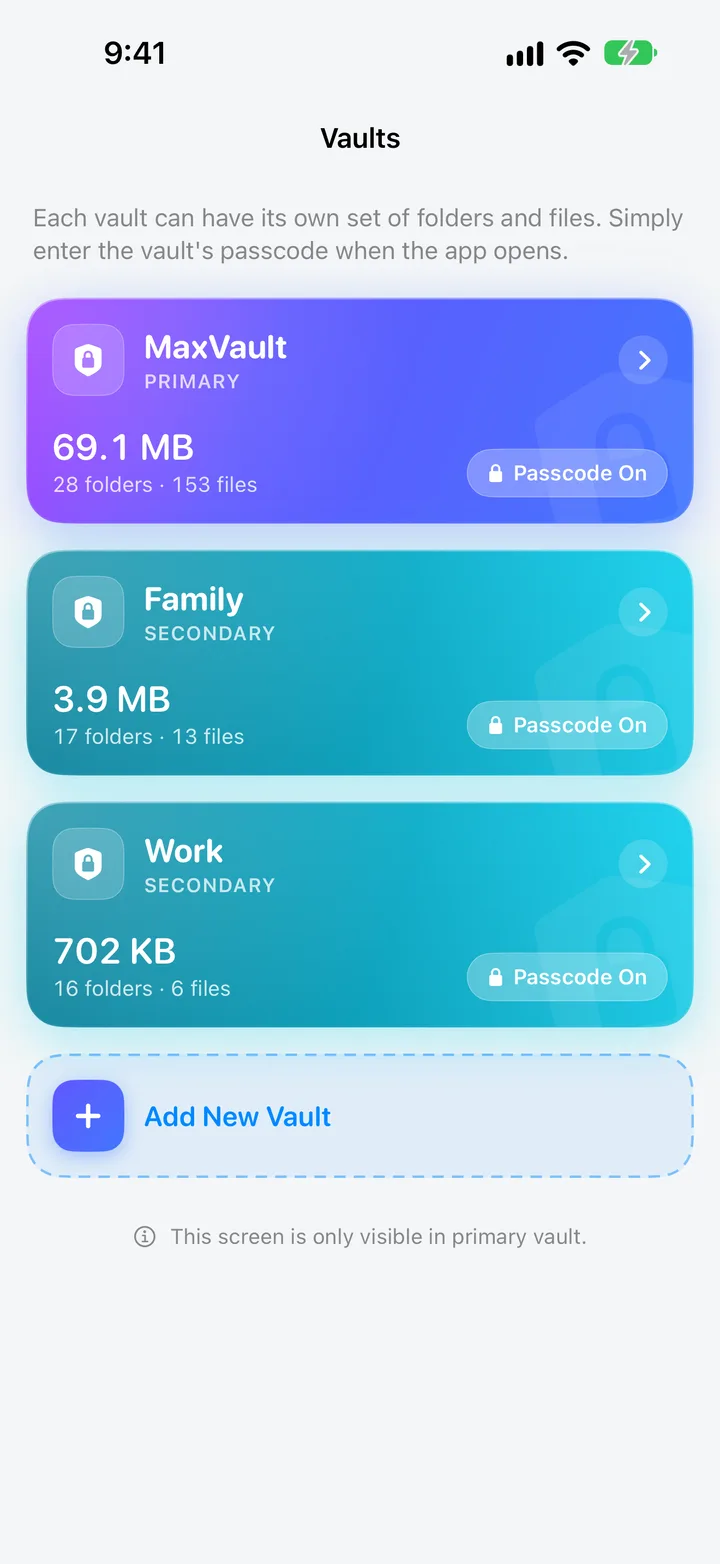
The Vaults screen in MaxVault: a primary vault and Family and Work vaults, each with its own passcode.

What Panic Action does

Face Down

Place your iPhone face down on a table and MaxVault is gone.

3 Fingers Swipe

Swipe down with three fingers to trigger it while you hold the phone.

Switch to Vault

Jump to a decoy vault filled with harmless content.

Open another app

Or open Safari, Photos, Mail or Messages instead.

Set up Panic Action

Full guide: How to set up a decoy vault on iPhone
  1. Set a passcode for your Primary vault. To switch to a decoy, add a secondary vault in Settings → Vaults too.
  2. Go to Settings → Security → Panic Action.
  3. Choose Switch to Vault, Open Safari, Open Photos, Open Mail or Open Messages.
  4. Choose the trigger: Face Down, 3 Fingers Swipe, or both.

Panic Action: questions.

What is a decoy vault?

A second vault with its own passcode, filled with ordinary photos. If you’re pressured to open MaxVault, open the decoy instead. How to set up a decoy vault.

Does the decoy reveal that other vaults exist?

No. The Vaults screen appears only in your Primary vault, so a secondary vault shows only its own files.

Do I need a passcode to use Panic Action?

Yes. Set a passcode for your Primary vault first, and create a secondary vault before choosing Switch to Vault.

Keep what’s personal private.

Free to download for iPhone and iPad.

Download on theApp Store